
Online calendar subscriptions (sync)
How to subscribe:
- The easiest way is on your mobile phone (iPhones or Android-compatible phones), with just a few clicks.
- You can also add it to your desktop calendars, such as Outlook or Google Calendar, making it especially convenient if you regularly plan from your computer.
- Subscribing on your phone does not add to your computer account – you have to add it manually. (However, adding to Gmail or Outlook from a computer may add it to your phone depending on your setup).
iPhone
Add to iPhone – click SUBSCRIBE
NOTE: iPhone only. If you have an Android phone (Samsung, Google Pixel, Xiaomi, OnePLus etc), please click the link below.
Android (Samsung, Google Pixel, Xiaomi, OnePLus etc)
Click the link below, and then click on the + in the bottom right
Add to Android phones: click + in bottom right after

Google/Gmail - computer
Calendar – gmail
Adding our calendar to your Gmail account:
-
- Log into your gmail on a computer (not a phone!)
-
- Open your calendar https://calendar.google.com/calendar
-
- On the left hand click “+” to add a friend’s calendar and select from URL
- On the left hand click “+” to add a friend’s calendar and select from URL

4. Then copy the URL below and paste this in the “URL of calendar” box and click “Add Calendar”:
Configure your Android device to sync to your Google calendar.
-
- Go into your device’s Calendar app, in the settings make sure your Google account is checked, then select ‘Sync Now’.
-
- You may need to select the Google account calendar, then under “Other calendars” check the subscribed calendars the Android device is to sync with (by default, the “Other calendars” may not be checked).
Microsoft Outlook (Windows PC installed app)
Calendar – Outlook on PC
Do not just click on the link – the calendar will not update with future dates as they are added if you do.
Instead open the calendar page in Outlook on your Windows PC, go to the Home menu, click Add Calendar and select the “From Internet” option.
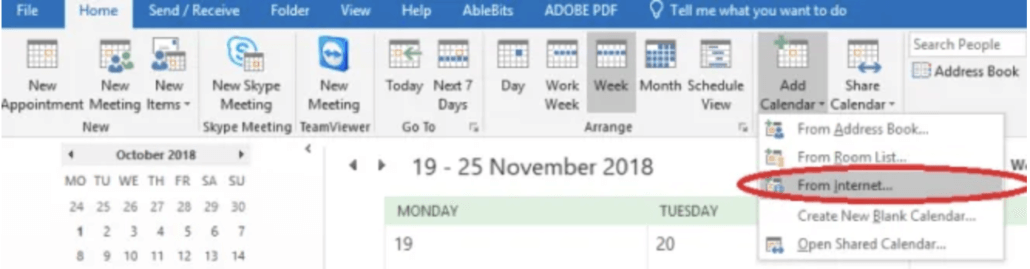
Then copy the URL below and paste this in the calendar URL box and click Ok:
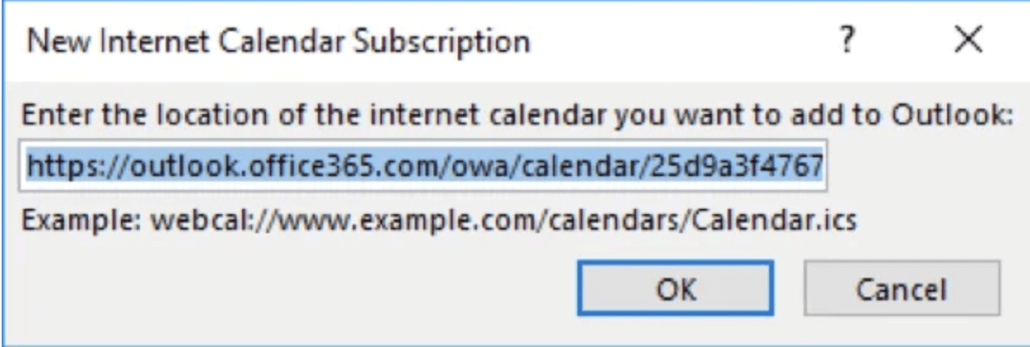
iPhone
If this Office 365 calendar account is already on your phone, the nursery calendar should now appear on it it after a short delay. If not, follow the iPhone instructions to add to iPhone.
Android – If this Office 365 calendar account is already on your phone,the nursery calendar should now appear on it it after a short delay. Otherwise follow the Android instructions to add to your Android phone.
Office 365 & Office Mac - web version
Calendar – Outlook Mac/Office 365
Navigate to the calendar on Office 365 online from a computer:
https://outlook.office365.com/owa/?path=/calendar/view/Week

Click on Add Calendar on the top left

Then select Subscribe from web
In the box, paste this address:
Click save.
iPhone
If this calendar account is already on your phone, the nursery calendar should now appear on it it after a short delay. If not, click on iPhone instructions
Android – if you also have Outlook on your phone, it should appear here, otherwise follow the Android instructions.


